Best attendance software in Pakistan (2026 guide)
How to compare attendance systems for Pakistani teams in 2026: what actually matters, the questions to ask in every demo, and a shortlist of options worth looking at.
Read the guide →How-to guide
A step-by-step guide to getting punches from Hikvision face, fingerprint and card terminals into cloud attendance and payroll software in real time, without USB exports.
 By HR360 Attendance team
6 min read
The short answer
Many current Hikvision access and attendance terminals can connect directly to a cloud platform using ISUP 5.0. The device dials out to the platform, so you don't need a static IP, port forwarding or a PC left running.
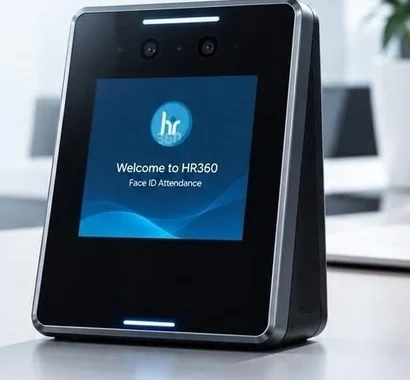
A Hikvision terminal stores every face, fingerprint and card punch in its own memory. On its own, that data is hard to use: someone has to export it on a USB stick or pull it into software on a local PC, then clean it up for payroll. If you have more than one branch, you repeat that for every machine.
When the terminal is connected to cloud attendance software, each punch reaches the software within seconds. Timesheets, late reports, leave balances and payroll stay up to date, and head office sees every branch in one place.
| Method | How it works | Good for | Limits |
|---|---|---|---|
| USB export | Download records from the device menu to a USB drive | Occasional reports | Manual, slow, error-prone; one device at a time |
| Local PC software | Hikvision client software on a PC in the same network collects punches | Single office | PC must stay on; hard to reach from other branches |
| Hikvision's own cloud | Terminals managed through Hikvision's Hik-Connect cloud attendance | Basic access and attendance | Payroll and wider HR usually still need other software |
| Direct to cloud HR software (ISUP 5.0) | The terminal registers with your HR provider's platform over the internet | Real-time attendance into timesheets and payroll, across branches | Model must support ISUP 5.0 |
There is also an HTTP-based interface (ISAPI) that some developers use to pull events or have the device push them to a server. It's powerful, but it usually needs a network path between the server and the device, so for cloud software ISUP is normally the simpler choice.
ISUP is Hikvision's protocol for connecting devices to a remote platform. Older firmware and documents may call it EHome. The key idea is that the device connects out to the platform, the same way your phone connects to WhatsApp. Because the connection starts from inside your office, you don't need a fixed public IP or to open ports on your router.
The device proves who it is with a device ID and an encryption key that your software provider gives you. Once registered, attendance events (who, when, and how they verified: face, finger or card) flow to the platform as they happen.
Menu names vary slightly between models and firmware versions. The steps below follow Hikvision's own instructions for configuring ISUP.
Plug in the network cable (or join Wi-Fi if your model supports it). Ask your IT team to reserve a fixed local IP for the terminal so it's easy to find later.
On a computer in the same network, type the terminal's IP address into a browser and log in as admin. If you don't know the IP, Hikvision's SADP tool will find devices on your network.
Set the time zone to your local time (Pakistan is UTC+05:00) and turn on automatic time sync (NTP). Wrong device time is the most common cause of "late" punches that weren't late.
Go to System > Network > Advanced > Platform Access. On some models this sits under Configuration > Network.
Set Access Type to ISUP, tick Enable, then enter the Server Address, Server Port and Device ID from your provider. Choose version 5.0 and enter the Encryption Password (it can't be blank).
Click Apply. The device restarts. When it comes back, the registration status should show Online.
Make sure each person enrolled on the terminal has the same employee number as in your HR software. Enroll faces or fingerprints on the device if they aren't already.
Have someone verify at the terminal and check that the punch appears in your software within a few seconds, with the right name, time and check-in or check-out status.
Important: according to Hikvision's documentation, enabling ISUP disables other platform access on the device. If the terminal was also linked to Hik-Connect, that link will stop when you switch to ISUP.
Repeat the same steps at each location. Each terminal gets its own device ID, but they can all register with the same platform. Because every device connects out over the internet, you don't need a VPN between branches, and head office sees punches from every site in one dashboard.
| Problem | Likely cause | What to do |
|---|---|---|
| Status stays Offline | Wrong server address, port or key; firewall blocking the outgoing connection | Re-enter the details exactly as given; ask IT to allow the device to reach the server and port |
| Punches show the wrong time | Device time zone or clock is wrong | Set the time zone to UTC+05:00 and turn on NTP time sync |
| Punches arrive as "unknown employee" | Employee numbers don't match | Use the same employee number on the device and in the software |
| Several punches for one person | Staff verify more than once | Set a rule in your software for first-in and last-out, or a minimum gap between punches |
| Hik-Connect stopped working | ISUP was enabled | Expected behaviour: ISUP disables other platform access |
| No ISUP option in the menu | Older model or firmware | Update the firmware, or ask your provider about other connection options |
Hikvision integration is included on every HR360 plan. Our team gives you the settings for your devices, checks each one registers, and tests punches with you. From then on, every face, fingerprint and card punch flows into timesheets, leave and payroll in real time, alongside check-ins from the HR360 mobile app for field staff.
See how it works on the Hikvision biometric sync page, or compare options in our guide to the best attendance software in Pakistan.
Yes. With ISUP 5.0 the terminal connects out to the cloud platform, so you don't need a static public IP or port forwarding.
On the device's web page it is usually under System > Network > Advanced > Platform Access, where you set Access Type to ISUP. Some models place it under Configuration > Network.
ISUP is the newer name for Hikvision's EHome platform protocol. Older firmware and documents may still say EHome.
Hikvision's documentation says enabling ISUP disables other platform access, so a Hik-Connect link on the same device will stop.
No. Hikvision terminal integration is included on every HR360 plan, and our team helps you set it up.
A 30-minute walkthrough built around your branches, shifts and devices.